
If you’re operating a Shopify store, you’ve certainly encountered a chargeback; if…
30 Best Free Video Editing Software Programs
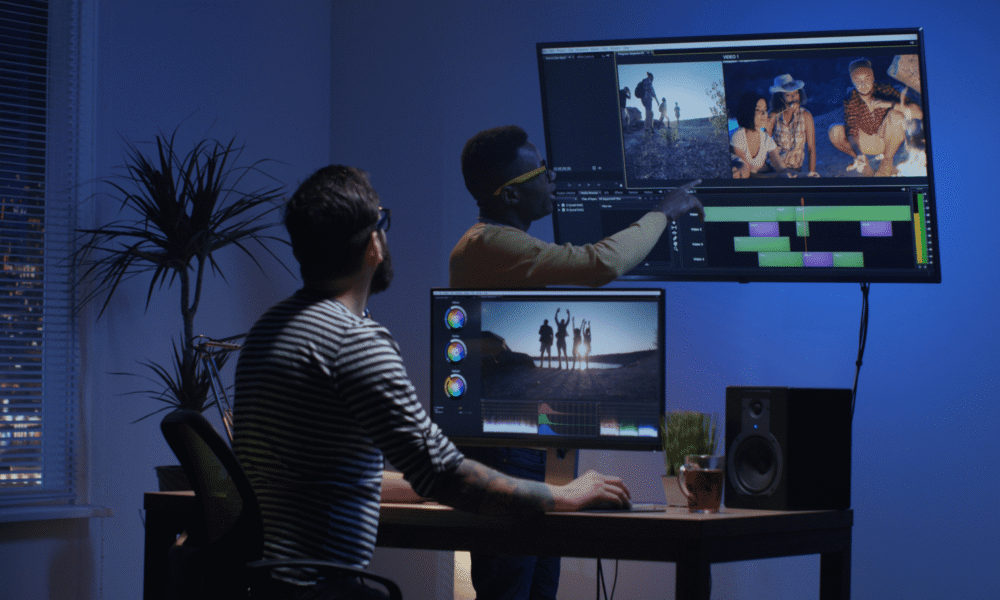
A compelling video may help your brand succeed in a world driven by visual content.
However, creating visually appealing video content is only possible with editing software. While most mainstream video editing software is expensive, there are several equally effective free alternatives.
That is excellent news for entrepreneurs with high aspirations. Whether it’s Instagram Stories, Facebook ads, or product testimonials on YouTube, using the best free video editing software will make your brand look polished and professional.
With the breadth and quality of accessible video editing software, you don’t have to be Spielberg – or have his money – to achieve dramatic effects.
We’ve sampled a list of the best free video editing software available in 2021 for this article. Our list includes the most versatile video editing software that we could uncover.
While each user’s objectives are unique, this guide will give you a solid overview of what each movie editor offers and how to get the most out of it.
We’ve classified this list into the best free video editing software for PC, the best free mobile video editing apps, and the best Instagram video editors. Are you set to proceed?
Get your PC, mobile, and Instagram videos a notch higher in terms of these video editors.
Ready, steady, and go!
Best Free PC Video Editing Software
This list of free video editing software for PC includes desktop applications. Typically, desktop programs offer better editing capabilities than mobile applications. When you need to create longer-form material for YouTube or your website, use these video editors.
Each of these video editors is either completely free or has an excellent free version. And their application spans from fundamental to advanced.
(#1). Freemake Video Converter
Windows-compatible
Freemake is a free video converter that lets you edit and convert videos, extract audio from video clips, and embed videos on websites. Freemake is an easy-to-use program that converts video clips for playback on various mobile devices and gadgets.

The software can convert videos between over 500 video formats and supports a variety of audio and image formats for creating slideshows and video clips.
Among the features of Freemake are the following:
- Convert Between More Than 500 Different File Formats
- Converting Videos Is Simple And Quick.
- Clips Can Be Cut, Joined, Or Rotated
- Convert Subtitle-Enabled Movies
- Support for a 4K display
Merit: There are no prerequisites for this position.
The downsides: During the initial installation, several features are disabled for 3 days.
Most ideal for: Its strongest suit is converting videos into a variety of file formats.
(#2). Machete Video Editor Lite
Windows-compatible.
Lite version of Machete Video Editor
Machete Lite offers the best free video editor for simple editing on Windows. You cannot edit audio tracks in the free version, but you can delete them. Additionally, the free edition is limited to AVI and WMV file formats.
The following features are included in Machete Video Editor Lite:
- Metadata-file tags are edited for all compatible media formats.
- Fragments of video files can be copied, chopped, pasted, and deleted.
- Create a separate file from the video stream
- Combine two videos of the same format
The complete version is $19.95 and adds audio editing capabilities and compatibility for more file types.
Merit: Extremely straightforward to learn and utilize.
The downsides: Only compatible with Windows; does not handle as many file kinds as other apps; does not include audio editing.
Most ideal use for this tool.
(#3). EaseUS Video Editor
Windows-compatible
EaseUS is an easy-to-use video editing app that is suitable for both beginners and pros.
It includes features for creating engaging videos to share on social media. You can cut MP3 files, apply effects, and even use pre-made templates on your videos.
Additionally, the EaseUS video editor functions as a sound effects editor, allowing you to easily add transitions, overlays, and filters to your clips for artistic purposes.
Additionally, because the free video editing software supports the vast majority of audio, video, and image formats, importing and exporting files should be a breeze.
To remove the video watermark and gain access to the most comprehensive range of high-quality video services, you’ll need the premium edition of the software.
Among their features are the following:
- Templates that guide you through the process of creating your videos from start to finish
- Excellent range of trimming, merging, rotating, mixing, & splitting features.
- Access to a variety of file types, such as MP3 and MP4
- Diverse filters, special effects, and overlays
- Conversion files are in the wrong format
Merit: Excellent for quickly and easily applying special effects to your videos.
The downsides: Lacks advanced features in comparison to other free video editors.
Most ideal for: The best application for filtering and enhancing your videos
EaseUS User Reviews: Read what others have to say about EaseUS.
(#4). VSDC Video Editor
Windows-compatible.
It’s an entirely free app.
VSDC is one of the best free 360-degree video editing programs available exclusively for Windows. The free version includes a wide range of valuable features, including color correction and audio editing.
Color blending lets you customize the video’s appearance to your brand. Additionally, beginners can save time editing using Instagram-like filters.
Additionally, VSDC lets you create various mask shapes to blur, conceal, or highlight specific parts of your movie.
If you’re looking for a premium video editor, VSDC offers a Pro edition for $19.99. It includes all the features of the free version, plus image stabilization, VoiceOver support, and a visual waveform. If you opt out of the pro edition, technical support costs $9.99 per month or $14.99 per year.
Merit: Relatively easy to learn, with a plethora of valuable features.
The downsides: Technical support is not free, and the software is only compatible with Windows.
Most ideal for editing projects based on Windows
VSDC User Reviews: Read what others are saying about VSDC.
(#5). HitFilm Express
Both Mac and Windows versions are supported.
Hitfilm, a video editor for Mac & Windows
HitFilm Express is one of the best free 360 video editing applications available for Mac and Windows users. It has all the fundamental editing features you’d expect from a basic editor (splicing, trimming, and audio editing), plus much more.
While some users may find HitFilm too advanced, it is undoubtedly one of the best all-around free video editors available. More than 180 special effects are included in the free package.
Although the tutorials are based on well-known Hollywood films such as Star Wars, they are highly interactive and entertaining.
Hitfilm requires you to share a status update on social media to get this software. This, however, is a relatively small price to pay for such advanced software. Among Hitfilm’s features are the following:
- Cutting implements of the highest quality
- Filters for both audio and video
- The use of layers and masking
- Support for 3D video
- Green screen keying
- Compositing tools
Merit: Truly professional video editor at an affordable price.
The downsides: It may take some time to become familiar with the interface.
The best use case is for YouTuber Vlogs – YouTube upload integration is built in.
(#6). DaVinci Resolve
It demonstrates compatibility with Windows, macOS, and Linux.
DaVinci Resolve Video Editing Software
DaVinci Resolve is unquestionably the most advanced video editor on this list. While it includes a slew of professional video features, its interfaces remain straightforward.
Along with video trimming and slicing, you can master audio and color fixes. Additionally, the program lets you add 2D and 3D titles to your video.
If all you want to do is cut and publish your videos, DaVinci Resolve’s expansive feature set may be overkill. However, if your video production requires a little more sophistication, this software’s free version is hard to match.
Among DiVinci Resolve’s features are the following:
- Editing multicamera footage
- Adjustment of color
- Trimming expertise
- Mastering of audio
Merit: Easy-to-use interfaces and excellent color correction.
The downsides: Its comprehensive feature set can be daunting, and not all tutorials are free.
Most ideal for More complex tasks requiring color correction
(#7). Lightworks
Lightworks is compatible with Windows, macOS, and Linux.
Lightworks Video Editing Software
Lightworks is another excellent free video editing software compatible with Windows, macOS, and Linux.
Lightworks is a more powerful video editor than the others on the list. It’s brimming with valuable features. The free version should be sufficient for most users.
- The free version of Lightworks includes high-precision video trimming.
- Multiple video formats are supported.
- Export to YouTube in 720p.
- Multicamera capability.
While most features are provided, 4K video support for YouTube and Vimeo is available exclusively in the software’s commercial edition, which costs roughly $25 per month.
Compared to Blender, Lightworks offers many excellent video tutorials to help you get started faster.
Compare the features of the free and paid versions to ensure that the free version includes everything you require. If the free version does not fulfill your needs, consider purchasing one of Lightworks’ commercial video editor packages.
Merit: A competent video editor with a plethora of advanced features.
The downsides: 4K video support is available only in the premium edition. Lightworks may be too advanced for some users.
Most ideal for General-purpose desktop video editing
Check out user reviews for Lightworks.
(#8). Avidemux
Avidemux is compatible with Windows, macOS, and Linux.
Avidemux Video Editing Software
Avidemux’s straightforward interface makes it an excellent choice for beginners wishing to create visually appealing video material. This software can assist you in performing basic activities such as:
- Simple slashing
- Encoding
- Filtering
If you’re new to video editing, this is a fantastic place to start.
Merit: Extremely straightforward software; no need to study technical documentation.
The downsides: This video editor lacks the functionality of other video editors.
Most ideal for Simple editing chores for novices
(#9). Openshot
OpenShot is compatible with Windows, macOS, and Linux.
Openshot Video Editing Software
Openshot is entirely free and open-source, making it one of the most accessible video editing software available.
Given its simple drag-and-drop interface, it may remind some Mac users of iMovie. Openshot, on the other hand, offers more features than iMovie, such as unlimited layers and audio mixing.
This free editor strikes an excellent balance between advanced features and a straightforward user interface. Additionally, it provides real-time previews when transitioning between clips.
Among the features of Openshot are the following:
- A More Complex Timeline including drag & drop, scrolling, panning, zooming, and snapping
- With real-time previews, you may resize, scale, trim, snap, rotate, and chop video clips.
- 3D animated titles templates, title creation, subtitles, and effects
- Optical illusions, picture overlays, and watermarks
- Multiple tracks/layers
Merit: It is open source and supports an unlimited number of layers.
Most ideal for: There aren’t nearly as many video tutorials as there are written tutorials.
Excellent for users new to video editing.
(#10). InVideo
Windows and Mac OS X compatible
Invideo online video editor
This free online video editing tool is ideal for marketers, publishers, individuals, and small businesses. This desktop-compatible software is the best-in-class for several reasons.
It supports intelligent frames, automated voiceovers, and much more. Users rave about this video editing software’s exceptional customer support, user interface, bang-for-buck value, and, of course, its features.
With new high-quality video templates being introduced regularly, this tool is suitable for both novice and experienced video editors. It’s surprisingly easy to use and incredibly flexible.
Among the features of Invideo are the following:
- High-Definition Support
- Instruments de audio
- Stabilize Your Video
- Brand/Text Overlay
- Speed Adjustment
- Collaboration
- Split/Merge
Merit: This is an excellent tool for quickly generating presentation videos.
The downsides: It is not a full-featured 360-degree video editor. You are not permitted to include more than one audio file, for example.
Most ideal for: The best application is for creating marketing videos or listicles for your site.
(#11). Blender
It is compatible with Mac OS X, Windows, and Linux.
Blender is a video editing program.
Blender, one of the most powerful free video editing programs, is compatible with Windows, macOS, and Linux.
Blender is a free, open-source application. Although the product was initially intended as a 3D animation suite, it does include an excellent video editor. Blender’s video editor should be sufficient for the majority of your video editing needs.
The editor lets you perform essential video editing functions, such as cutting and splicing. Additionally, it becomes proficient at performing more complex tasks, such as video masking. As a result, it is a very versatile video editor suitable for both novice and advanced users.
Blender’s Video Editor is equipped with the following features:
- Control over speed, adjustment layers, transitions, keyframes, and filters, among other things.
- Displays include the live preview, luma waveform, chroma vectorscope, and histogram.
- Up to 32 spaces are available to add video, graphics, music, and effects.
- Merit: Ideal for advanced users who aren’t intimidated by the abundance of features.
- Audio mixing, synchronization, scrubbing, and display of waveforms.
The downsides: Due to the breadth of features, the learning curve is slightly steeper. The majority of tutorials focus on 3D animation and modeling. The resources available to help you use the video editor are limited.
Most ideal for More complex projects that may include 3D animation
Blender Reviews: Read user reviews about Blender.
(#12). Shotcut
It is compatible with Mac OS X, Windows, and Linux.
Shotcut is the most effective video editing software for desktop computers.
Shotcut counts among the best free video editing software for Windows, and it works equally well on Mac and Linux computers.
Shotcut, like Blender, is an entirely open-source tool, meaning all features are available without a paid upgrade.
While this video editing software includes several impressive features and tutorial videos, some users may find the interface odd. That is because Shotcut was created initially for Linux, and it shows. However, it is still a capable video editor behind the hood.
Two of Shotcut’s most notable features are its support for 4K HD quality and its timeline editing. There are a few free video editors that support 4K resolution. Additionally, Shotcut does not require you to import your video into the editor, saving you time if you work with huge video files.
Additionally, Shotcut is a 1080p video editor for individuals seeking one. The software supports 1080p videos at a frame rate of 60 frames per second (frames per second). Additionally, it supports three lossless export formats, enabling lossless video transfer (the only downside is the large file sizes).
Merit: Native timeline editing and support for 4K resolutions.
The downsides: For some users, the eccentric interface may be off-putting.
Most ideal for 4K, HD, and 1080 video productions
Check out user reviews for Shotcut.
(#13). iMovie
Mac compatibility
iMovie Video Editing Software for Mac
As with most native Mac applications, iMovie is highly intuitive to use.
With iMovie’s drag-and-drop interface, moving and editing video objects is a breeze. Mac users can use this video editing software as a learning tool for the fundamentals of video editing. The following are some of iMovie’s features:
- Library of pre-made transitions
- Support for a 4K display
- Video trimming
- Audio editing
- Split screen
Merit: Simply put, it’s a breeze to learn.
The downsides: Advanced users may find several features lacking; import and render times may be a touch lengthy.
Most ideal for: The best choice for Mac users new to video editing.
IMovie User Reviews: Read what others are saying about iMovie.
(#14). VideoPad
Windows-compatible
VideoPad Editing Software for Windows
VideoPad is one of the best video editing tools for beginners looking to get started in multimedia video editing. It’s ideal for anyone getting started with video compositions because it’s straightforward and quick to use. Advanced video editors, on the flip side, may find it unappealing.
Among the features of VideoPad are the following:
- Multiple Resolutions For Exporting Videos
- Reduce Camera Shakes
- Sound Effects Library
- Transitions library
- 3D Video Editing
Merit: Extensive exporting features to YouTube and other social media channels.
The downsides: For more advanced users, it may be too easy.
Most ideal for: Newcomers to video editing.
User Reviews provides you with a look at what others have to say about VideoPad.
Mobile’s Best Free Video Editing Software
These apps are designed for individuals who enjoy capturing and sharing videos from their cellphones and editing videos on the move. While other excellent video editing programs are available, this list highlights the best, most intuitive, and free video editing software for mobile devices.
(#15). Adobe Premiere Rush
iOS and Android versions are accessible
Adobe Premiere Rush, a free mobile video editing software
Adobe Premiere Rush is a well-known video editor for Android and iOS devices. Add music (your own or from a library), transitions, and automatic color correction, and your video is ready to share.
Given its two modes, Freeform & Automatic, you can retain editing control or allow Adobe to select transitions and trim your footage automatically. Adobe lovers will be pleased to learn that this app seamlessly integrates with other Adobe products, such as Lightroom.
Merit: Ease of use; compatibility with Adobe Creative Cloud.
The downsides: It is missing a few essential features, such as the ability to rotate clips.
Most ideal for Simple smartphone video editing
User Reviews offer insight into what others say about Adobe Premiere Rush.
(#16). Promo.com
Available for both iOS and Android devices.
Promo.com is an excellent tool for creating stunning, professional-looking videos for social media posts and advertisements. With the program’s web and mobile versions, you can effortlessly edit videos at your desk or on the road.
Among the features are the following:
- Brand/Text Overlay
- Speed Adjustment
- HD Resolution
- Social Sharing
- Video Capture
- Audio Tools
- Split/Merge
Merit: Extremely simple to use, straightforward user interface, and excellent automation.
The downsides: Because the mobile edition has a smaller screen, it can be challenging to arrange text and photos.
Most ideal for: Creating high-quality advertisements quickly and easily.
Take a look at user reviews for Promo.com.
(#17). GO KASO
IOS and Android versions are available.
AKASO GO is a free video editing software for mobile devices.
AKASO GO is a practical mobile video editing tool that enables greater mobility while editing.
With AKASO, you get a robust editing suite that lets you add effects like filters, transitions, and music to your videos.
Additionally, you may edit your clip to capture the perfect moments and instantly share your work on social media.
Among the features are the following:
- Share your content immediately on social networking channels.
- Featuring eye-catching stickers, animations, and caption texts
- Clips include extensive cutting and trimming features.
- Editing professionally with special effects and music
- Remote video recording through your smartphone
Merit: An excellent app for on-the-go video editing.
The downsides: There is a slight learning curve for individuals unfamiliar with using their smartphones for video recording and editing.
Most ideal for: Using your smartphone to take action images.
ASAKO GO User Reviews: Read what others have to say about ASAKO GO.
(#18). Vizmato
iOS and Android versions are available.
iOS video editors that are the most effective
Vizmato, one of the best free video editors for Android and iOS, simplifies creating amazing videos and slideshows.
The app features video clipping, trimming, editing, and HD recording with immediate video effects, themes, and filters applied.
Built-in speed control enables you to accelerate or decelerate the effects applied to your footage. Additionally, you can edit your video by adding stickers and text and inserting your background music.
The voice changer effects are another unique aspect of this mobile editing app. You may modulate your voice in Vizmato’s editor to sound like a ghost, chipmunk, baby, and more.
This is an excellent setup for recording voiceovers or delivering amusing video stories. You can instantly share videos with your followers on Instagram, Facebook, and other social media platforms with a single click.
Merit: high-definition recording; instantaneous video effects; voice changer
The downsides: Videos can be rendered slowly at times.
Most ideal for: Creating shareable video content
Vizmato User Reviews: Read what others have to say about Vizmato.
(#19). Horizon
iOS and Android versions are accessible
Horizon Video Editing Software
Horizon is a straightforward app that lets users capture videos horizontally regardless of their phone’s orientation.
When we rush to capture a moment, we may forget to tilt the phone horizontally to capture the action. This app can assist you in resolving that issue: all footage captured in the app is horizontal in orientation, regardless of how your phone is tilted. To see how it works, check out this demo.
Horizon has you covered if you’re looking to avoid vertically captured videos and create something quickly.
Merit: Extremely user-friendly; vertical content is never wasted.
The downsides: The Android version is less complex than the iOS version; depending on your needs, certain in-app purchases may be required.
It is ideal for capturing film horizontally at all times.
Read user reviews; what are others saying about Horizon?
(#20). GoPro
Available for both iOS and Android devices.
Free GoPro video editor for mobile
GoPro is a top-rated free video editing app for iPhone and Android users. The app’s intuitive UI makes it easy to learn.
With GoPro, editing and cutting videos are as simple as a few touches. Add a few transitions and sounds from the extensive built-in library, and your video is complete.
Merit: Uncomplicated and relatively simple to use.
The downsides: It can be a little glitchy.
Most ideal for: When you need to edit a video quickly
GoPro User Reviews: Read what others have to say about GoPro.
(#21). Quik
iOS and Android versions are accessible
Quik Free Video Editing Software
Quik is the producer of GoPro’s free video editing app. This app is comparable to the famous mobile video editor Splice, except it limits its editing capabilities.
It has automatic trimming and editing features that expedite the editing process, but you can also edit your clips manually if you prefer greater control.
Quik is outstanding at finding great moments in your videos and even automatically building transitions.
This is the app for you if you need a quick edit. Additionally, unlike Splice, it is compatible with Android!
Merit: Features for automated editing.
The downsides: Some users may want more editing control.
Most ideal for Quick, customized video editing
Quik User Reviews: Read Quik user reviews.
Instagram’s Best Free Video Editing Apps
Instagram is something we all adore. However, as an online entrepreneur, you understand the value of presenting your brand professionally on an app.
Therefore, why not elevate your Instagram Stories with these video editing apps? By the way, all of the mobile video editing tools described above function particularly well with Instagram. However, the video editing tools listed in this section were created with the Instagram platform in mind.
(#22). PicPlayPost
Available for both iOS and Android devices.
Free video editor picplaypost
At times, all you want to do is post a video collage without any fancy editing. PicPlayPost is the ideal app for such occasions. You can create a collage in seconds with the app to share travel videos, demonstrate how-tos, and more.
Among the features of PicPlayPost are the following:
- Add a watermark with an image, logo, or text
- Select from nine different video collages.
- Import and add GIFs from Giphy
- Add background soundtracks
Merit: A straightforward video editor devoid of superfluous and perplexing features.
The downsides: Combining numerous collages requires an upgrade.
Most ideal for: Creating stunning collages from your video recordings.
PicPlayPost User Reviews: Read user reviews about PicPlayPost.
(#23). Boomerang
Available for both iOS and Android devices.
Boomerang Instagram Editing Software
Boomerang is an Instagram-created app available for iOS and Android. This app enables you to create more engaging content with your photos. Shoot a burst of up to ten pictures, and Boomerang will convert them to a short video. You may now publish directly to Instagram from the app, thanks to native integration.
Among Boomerang’s features are the following:
- Save footage to your camera’s memory card
- Create mini-videos for Instagram Stories
- Smooth out any bumps in the video
- Videos are repeated back and forth.
Merit: Extremely straightforward to utilize and share content.
Most ideal for: This is essentially a one-feature app.
Best for: Creating compelling video content from photos.
Boomerang User Reviews: Read user reviews about Boomerang.
(#24). Apple Clips
Only available on iOS
While some native Apple applications fall short, Apple Clips is an exception. This app will handle most of your Instagram video editing needs. You may edit your timeline and stitch clips together.
Two of the more intriguing features are the ability to customize your background and give your content a comic book feel.
Read Also:
- 17 Best Methods For Product Ideas For Shopify Store (2021)
- 10 Product Evaluation Ideas For Dropshipping Products 2021
- 15 Product Research Ideas To Find Dropshipping Products 202
- 17 Facebook Advertising Mistakes To Avoid In 2021
- 10 Ways To Drive Free Traffic To Your Shopify Store In 2021
The following incredible feature is Live Titles: shoot a video, and Apple Clips will automatically add captions as you speak (that are in sync with your voice).
Once you’re finished, go back and edit the titles to ensure they’re accurate.
Merit: It’s quick and straightforward to use, and it includes a feature called Live Titles.
The downsides: It is only available for iOS.
Most ideal for Apple users seeking a speedy, interactive iOS video editor compatible with Instagram.
Apple Clips Customer Reviews: Read Apple Clips customer reviews.
(#25). Hyperlapse
Only available on iOS.
Hyperlapse is the Best Video Editing Software for Instagram
Hyperlapse is an excellent tool for creating time-lapse videos. Because Instagram designed this app, it is truly optimized for that platform.
Hyperlapse can help you create engaging videos for your audience by condensing a long period into a brief video. Be prepared to receive a flood of Instagram followers after sharing a few time-lapse videos on your Instagram feed.
Additionally, this app eliminates the need for tripods thanks to its excellent stabilization technology. This type of time-lapse video would be great for demonstrating a product’s manufacturing process.
When your timelapse video is complete, you may share it directly on Instagram. Additionally, you can speed up your time-lapse by up to 12x.
Merit: The use of stabilization technology eliminates the need for a tripod.
The downsides: iOS-only; may require a few attempts to achieve great results.
Most ideal for: Capturing breathtaking time-lapse photography.
(#26). Magisto
Available for both iOS and Android devices.
Magisto Instagram Video Editor
Magisto is a multi-award-winning artificial intelligence video editor. Add your photos, video, music, and anything else you wish to include, and it will automatically edit and create your video for you. And the outcomes are excellent.
By selecting the type of tale you wish to tell, Magisto can save you time by delivering a professional video utilizing its intelligent video editor. It’s ideal for quickly posting to Instagram. The app creates the illusion that you spent at least a few hours editing your work.
Merit: The AI outcomes are very remarkable.
The downsides: You give up some editing flexibility in exchange for speed.
Most ideal for: Creating quick, professional-looking video edits.
Magisto Customer Reviews: Read user reviews about Magisto.
(#27). FilmoraGo
Available for both iOS and Android devices.
Finally, but certainly not least, we arrive at FilmoraGo. FilmoraGo is a capable video editing app that is free of watermarks and subscriptions.
All from within the app, you can add music, transitions, and reduce video clips.
Your videos get customized with themes, text, and titles. A desktop version is available for $44.99 a year, although the free mobile app provides enough editing functionality.
Merit: great for editing an introductory cellphone video.
The downsides: The mobile version is not quite as excellent as the desktop version.
Most ideal for: Customizing your videos with text, themes, and overlays.
FilmoraGo User Reviews: Read what others have to say about FilmoraGo.
Best Free Video Editing Software FAQs
Thus, using FAQs, let us summarize and discuss the most suitable video editing software.
What makes for the best free video editing software for PC, editing and converting videos, extracting audio from video clips, and embedding videos on websites?
Freemake
Which video editors for the Instagram app are the most effective at converting audio files into social media shares?
Anchor Video Creator is available on iOS and Android devices.
What video editors for the Instagram app are the best for customizing videos with text, themes, and overlays?
FilmoraGo
Which free video editing software for PC is recommended for Mac users who are new to video editing?
iMovie
Which video editors for the Instagram app are most efficient for quick edits?
Magisto, Clips for Apples
Which video editors for Instagram are the most effective for converting images to video content?
Boomerang, a mobile app accessible for iOS and Android
What’s the best free video editing software for PC for complex 3D animation projects?
Blender
Which is the best free video editing software for PC for editing projects on Windows?
VSDC
What’s the best free video editing software for PC for submitting vlogs to YouTube?
Film Express HitFilm
Which mobile video editing apps should you use when you need to edit a video quickly?
Adobe Premiere Rush, Quik, and Splice
Which is the best free video editing software for PC that I should use for 4K and HD projects?
Shotcut
Which video editors for the Instagram app are optimal for time-lapse photography?
Hyperlapse
Which is the best free video editing software for PC for color correction?
DaVinci Resolve
Which mobile video editing apps are best for capturing horizontal video?
Horizon
Which is the best free video editing software for PC, and is it the most beginner-friendly?
Avidemux, Openshot, and VideoPad
Which is the best free video editing software for splicing videos?
Machete Miniature
Final thought: Best Free Video Editing Software
Begin creating great videos today with the free video editing software on our list. Increase your return on investment and make the most of your brand budget by developing aesthetically engaging product videos and advertising.
Have fun with your editing!
Related Posts


Comments (0)