
If you want to start an online book store, the data is…
30 Best Free Video Editing Software Programs
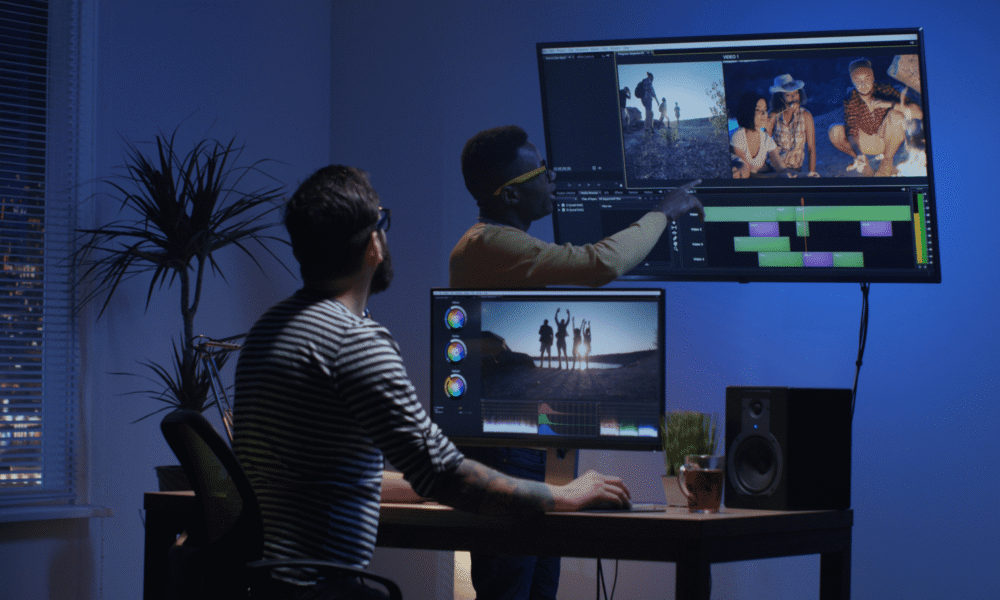
A compelling video can do a lot for your brand in a world driven by visual content.
Editing software is essential for great video content, but most options are pricey. Free alternatives are crucial for new entrepreneurs and those watching their margins.
Whether you’re making Instagram Stories, Facebook ads, or product testimonials for YouTube, the right free video editor will make your brand look polished without spending a cent.
This updated 2026 list removes discontinued tools, adds new essentials, and is organized by PC, mobile, and Instagram video editors, highlighting options for dropshippers and ecommerce creators.
Let’s get into it.
Best Free PC Video Editing Software
Desktop editors generally give you more control than mobile apps — better timelines, more export options, and support for longer-form content. Use these when producing YouTube videos, product demos, or anything going on your website.
#1. DaVinci Resolve
Windows, macOS, Linux
If you only download one tool from this list, make it DaVinci Resolve. It has been the consensus best free video editor for several years running, and the 2026 version (v20) only confirms that.
The free version gives you four full workspaces — Edit, Color, Fairlight (audio), and Fusion (motion graphics). For color correction alone, it rivals paid software that costs hundreds of dollars.
Features include: multicamera editing, color grading, audio mastering, 2D and 3D titles, and 4K support up to 60fps on the free tier.
Best for: Anyone serious about video editing who doesn’t mind a learning curve.
Downside: Requires decent hardware — at least 16GB RAM and a dedicated GPU for smooth 4K editing.
#2. CapCut (Desktop)
Windows, macOS
CapCut has grown rapidly — it crossed 300 million monthly active users in 2024 — and for good reason. The desktop version is fast, clean, and surprisingly capable for free software.
It’s built with short-form content in mind (TikTok, Reels, Shorts), and it shows. Auto-captions, background removal, text-to-speech, and built-in templates make it easy to produce social media content quickly.
Features include: AI auto-captions, background remover, speed control, text overlays, transitions, and watermark-free exports.
Best for: Dropshippers and ecommerce creators making short-form content for social.
Downside: Less suited for long-form YouTube content; ByteDance (TikTok’s parent) owns it, which some users have concerns about.
#3. Clipchamp
Windows (built into Windows 11)
If you’re on Windows 11, Clipchamp is already installed on your machine. It’s Microsoft’s free video editor and has improved significantly over the past two years.
The free version exports 1080p without a watermark and includes AI-powered tools: auto-captions in 80+ languages, silence remover, background noise suppression, and a text-to-speech feature. It also has a built-in screen recorder, which is handy for product tutorials.
Best for: Windows users who want a quick, no-download editor with AI tools built in.
Downside: Needs an account to use; collaborative features are limited on the free plan.
#4. Shotcut
Windows, macOS, Linux
Shotcut remains one of the best fully open-source editors available. All features are free — no paid upgrade required.
Its strongest features are 4K HD support and native timeline editing. You also don’t need to import your footage into the editor before working on it, which saves time when dealing with large files. It supports 1080p at 60fps and three lossless export formats.
Best for: 4K, HD, and 1080p video productions.
Downside: The interface feels a bit unconventional — it was built originally for Linux, and it shows. New users may need a few tutorials to get comfortable.
#5. HitFilm Express
Windows, macOS
HitFilm Express is a strong pick if you want professional-grade features without paying for them. It combines a standard video editor with a visual effects compositor — over 180 special effects are included in the free version.
It’s built with YouTubers in mind and has native YouTube upload integration. The tutorials are interactive and reference well-known films, which makes them more engaging than most.
Best for: YouTube creators and anyone needing VFX in their videos.
Downside: The interface takes time to learn; it may be overkill for simple edits.
#6. Kdenlive
Windows, macOS, Linux
Kdenlive is an open-source editor that doesn’t get enough attention. It offers a multi-track timeline, proxy editing (for smooth editing of high-res footage on slower machines), keyframe animation, and a wide range of effects and transitions — all completely free.
It has improved substantially in recent years and is now a legitimate alternative to Lightworks for general desktop editing.
Best for: Intermediate users who want a full-featured open-source editor.
Downside: Less polished than DaVinci Resolve; occasional stability issues on Windows.
#7. VSDC Video Editor
Windows only
VSDC is a solid Windows-only free editor with color correction, audio editing, and mask shapes to blur or highlight specific parts of your video. The color blending tools let you match video to your brand palette, and the Instagram-like filters speed up basic color work.
A Pro edition is available at $19.99 if you want image stabilization and VoiceOver support. Technical support on the free version costs extra ($9.99/month).
Best for: Windows-based editing projects, especially where color customization matters.
Downside: No Mac or Linux support; technical support isn’t free.
#8. Lightworks
Windows, macOS, Linux
Lightworks has professional-level editing features and a solid set of free tools. The free version includes high-precision trimming, multiple video format support, multicamera capability, and YouTube export at up to 720p.
Note that 4K export for YouTube and Vimeo requires the paid plan (~$25/month). If you need 4K in your workflow, either Shotcut or DaVinci Resolve serves you better at zero cost.
Best for: General-purpose desktop editing.
Downside: 4K is paywalled; the interface can feel dated.
#9. OpenShot
Windows, macOS, Linux
OpenShot is fully free and open-source with a drag-and-drop interface that Mac users may find similar to iMovie, though it offers more, including unlimited layers and audio mixing.
It’s a good middle ground between beginner-friendly and feature-rich, with real-time previews when transitioning between clips.
Features: unlimited layers, 3D animated titles, picture overlays, watermarks, and subtitle support.
Best for: Users new to video editing who still want access to advanced features.
Downside: Fewer video tutorials than written docs; can be slow on older machines.
#10. DaVinci Resolve (already listed as #1 — see above)
#10. Avidemux
Windows, macOS, Linux
Avidemux is a no-frills editor for basic tasks: cutting, encoding, and filtering. The interface is straightforward enough that you can get started without reading any documentation.
Best for: Beginners who just need simple edits with no learning curve.
Downside: Lacks the functionality of nearly every other editor on this list.
#11. Blender
Windows, macOS, Linux
Blender was originally built as a 3D animation suite, but its video editor is capable enough for most editing needs. You can cut, splice, use up to 32 layers, mix audio, and apply keyframes and filters.
It’s powerful, but the learning curve is real — most tutorials cover 3D modeling, not video editing, so finding the right resources takes time.
Best for: Projects that combine video editing with 3D animation.
Downside: Video editing documentation is limited; steeper learning curve than most editors.
Best Free Mobile Video Editing Apps
These apps are for editing on the go — capturing and sharing video from your phone without needing a desktop.
#12. CapCut (Mobile)
iOS, Android
Already covered in the PC section, but worth emphasizing here: the mobile version of CapCut is arguably the most powerful free mobile editor available right now. It handles TikTok, Instagram Reels, and YouTube Shorts natively, with auto-captions, background removal, and AI-generated effects baked in.
Best for: Social media content creation on the go.
#13. InShot
iOS, Android
InShot is clean, fast, and widely used by e-commerce sellers for quick product video edits. It handles trimming, merging, filters, and music, and supports up to 60fps exports. It’s multilingual and works well for stories and reels.
Best for: Quick social media video edits directly from your phone.
Downside: Some features require the paid version; watermark on free exports unless removed manually.
#14. Adobe Premiere Rush
iOS, Android
Adobe Premiere Rush has two editing modes — Freeform and Automatic — letting you either stay in control or let Adobe handle transitions and trimming automatically. It integrates cleanly with Adobe Creative Cloud and Lightroom.
Best for: Simple smartphone editing, especially if you’re already in the Adobe ecosystem.
Downside: Missing some features (like clip rotation); can feel limited compared to CapCut.
#15. GoPro (Quik)
iOS, Android
Quik — GoPro’s free editing app — is excellent at finding the best moments in your footage automatically and building transitions around them. It also supports manual editing if you want more control.
Unlike some competitors, it works on Android too.
Best for: Quick, automated video edits from mobile footage.
Downside: Less manual control than dedicated editors.
#16. Vizmato
iOS, Android
Vizmato combines video clipping, trimming, HD recording, and speed control in one app. The voice changer feature is a fun addition for creators producing entertaining video stories — you can modulate your voice to sound like a chipmunk, ghost, and more. Sharing directly to Instagram and Facebook is built in.
Best for: Creating shareable, entertaining short-form content.
Downside: Renders can be slow at times.
#17. Horizon
iOS, Android
Horizon solves a specific problem: vertical video. Any footage captured in the app is automatically horizontal, regardless of how you’re holding your phone. Useful when you’re rushing to capture a moment and forget to flip the phone.
Best for: Always capturing horizontal footage.
Downside: Android version is less fully featured than iOS; some in-app purchases are needed.
Best Free Instagram Video Editing Apps
These tools were built with Instagram in mind. Most of the mobile editors above also work well for Instagram — but the apps below are specifically optimized for the platform.
#18. PicPlayPost
iOS, Android
PicPlayPost is the go-to for video collages. Create travel compilations, how-tos, or product showcases from multiple clips in seconds. You can choose from nine different collage layouts, import GIFs from Giphy, and add watermarks or logos.
Best for: Video collages for Instagram.
Downside: Multiple collages require an upgrade.
#19. Boomerang
iOS, Android
Instagram’s own app. Shoot a burst of up to ten photos, and Boomerang converts them into a looping mini-video that plays forward and backward. Direct Instagram publishing is built in.
Best for: Creating engaging looping content from photos.
Downside: It’s essentially a single-feature app.
#20. FilmoraGo
iOS, Android
FilmoraGo is a capable mobile editor with no watermarks or subscriptions on the free version. Add music, transitions, themes, text, and titles directly from the app. A desktop version is available at $44.99/year, but the mobile app covers most basic needs.
Best for: Customizing videos with text, themes, and overlays.
Downside: The desktop version is significantly more powerful than the mobile one.
#21. Hyperlapse
iOS only
Built by Instagram, Hyperlapse is designed for time-lapse videos with built-in stabilization — so you don’t need a tripod. You can speed up footage up to 12x and share directly to Instagram. Great for product manufacturing demos or behind-the-scenes content.
Best for: Time-lapse photography and videos.
Downside: iOS only; may need a few attempts to get great results.
#22. Magisto
iOS, Android
Magisto uses AI to automatically edit your footage. Add your clips, photos, and music, choose the story style, and it produces a finished video. The results are solid for how little effort is involved.
Best for: Creating polished videos quickly with minimal editing.
Downside: You give up editing control in exchange for speed.
FAQ: Best Free Video Editing Software
Which is the overall best free video editor in 2026?
DaVinci Resolve. It’s been the consensus pick for years, and the 2026 version makes it even harder to argue against — professional color grading, multicamera editing, and 4K support all for free.
What’s the best free video editor for social media content?
CapCut. It’s built for short-form content, exports without watermarks, and has AI tools that make captions, background removal, and transitions fast.
Which free editor is best for Windows users who don’t want to download anything?
Clipchamp — it comes pre-installed on Windows 11 and exports 1080p for free.
What’s the best free mobile video editor?
CapCut for most people. InShot is a close second if you prefer a simpler interface.
Which free editor is best for Mac users new to video editing?
iMovie. It’s intuitive, free, and a good stepping stone before moving to Final Cut Pro.
Best free editor for 4K projects?
DaVinci Resolve (free version supports 4K 60fps) or Shotcut.
Best free editor for YouTube vlogs?
HitFilm Express — it has native YouTube upload integration and built-in VFX.
Best free editor for color correction?
DaVinci Resolve, without question.
Best free editor for 3D animation projects?
Blender.
Best for beginners overall?
OpenShot, Avidemux, or CapCut, depending on whether you’re on desktop or mobile.
Final Thought
The free video editing landscape in 2026 is genuinely strong. Whether you’re a beginner putting together your first product video or an experienced creator working on a full YouTube series, there’s a free tool that fits your workflow.
Start with DaVinci Resolve if you want the most capability. Start with CapCut if you want the fastest path to publishable social content. Either way, there’s no excuse to let budget be the reason your brand videos look unpolished.
Related Posts

Comments (0)